

Approving transactions
Requisitions generated from SmartBuy Plus can be approved in two different ways. They can be approved via email or they can be approved by logging into the SmartBuy Plus website. In general, the email method is quicker and easier. If you need to review the requisition in more detail, to read and attached document for example, you currently need to log into the website instead. For instructions for either method, please view the links below. Instructions on how to assign a substitute approver if you are going to be out of the office are also listed below. Please contact the Business Manager if you have any questions or run into any problems.
- Email based approvals (PDF file)
- Web based approvals (PDF file)
- Assigning substitute approvers (PDF file)
- Forwarding requisitions to a different approver.
Forwarding approvals to a different user
As an approver in SmartBuy Plus, there may be times when you have received a requisition to approve that should have been sent to a different approver instead. Or perhaps you would like someone else to approve the transaction because you feel it would be more appropriate for that person to be the approver. When this occurs, you do not need to return the requisition – you can forward it to the appropriate approvers instead.
To forward a requisition to someone else for their approval, please follow the steps below:
- Open the requisition in SmartBuy Plus. You can do this by clicking on the link in the approval email you received or finding it by going in “Action Items”.
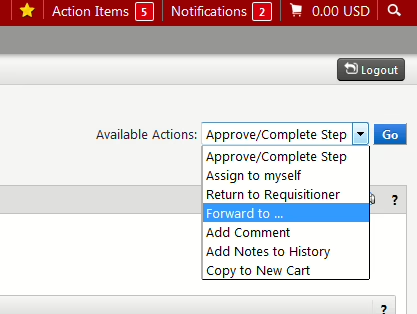
- From the “Available Actions” dropdown menu, select “Forward to …”
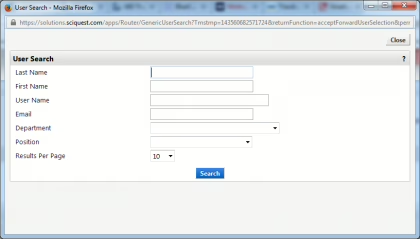
- From the user search screen, search for a user by entering their information in one or more fields – usually just last name will suffice. Click the blue “Search” button when done.
- Select the name of the user you wish to forward the approval to.
- Optionally write a brief note/explanation.
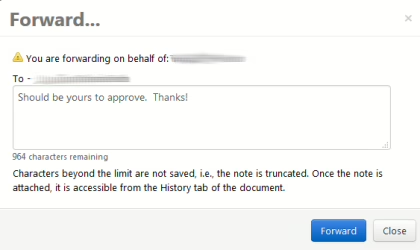
- Click the blue “Forward” button. The requisition will now go to the user you selected for approval.
Selecting an alternate financial approver
All users in SmartBuy Plus are assigned a “financial approver”. The financial approver approves any employee reimbursement submitted for the user and also approves any other transactions that exceed the user’s financial limits.
In certain cases, user/employees perform work for more than one department. In such cases, the user/employee can be assigned multiple financial approvers. When this happens, one approver will be considered the “preferred approver” and will be used as the default approver for any transactions that require a financial approver’s review.
When multiple financial approvers have been assigned to a user, the appropriate approver can be selected by completing the following steps:
- Proceed to checkout.
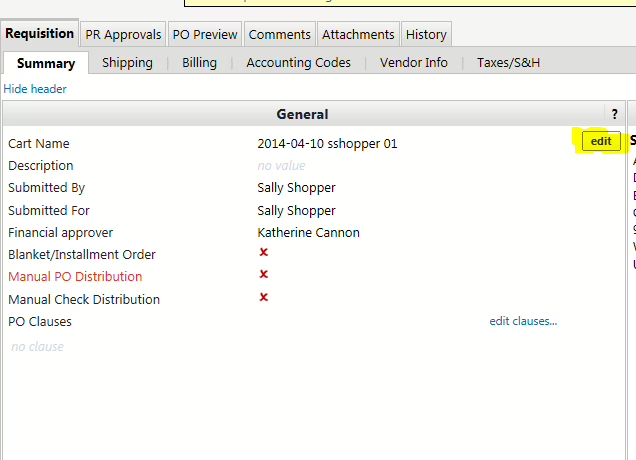
- Click the “Requisition” tab and view the Summary
- Click the “Edit” button (see image below)
- Under the name of the financial approver, click on the “Select from profile values…” link.
- Click on the dropdown box to see a list of available approvers:
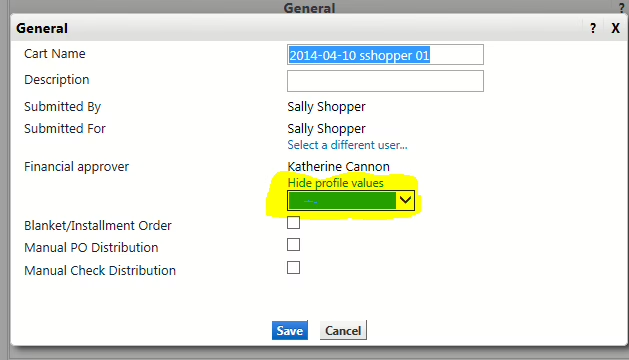
- Select the approver you want from the list and then click the blue “Save” button.