

VLabs
Frequently asked questions
How do I connect to a computer on VLabs?
Click here to learn how to connect to and save files in VLabs
What software is available on VLabs?
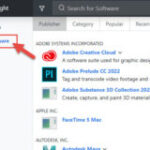
Since VLabs connects to on-campus devices, the software available will be the same as outlined on our campus software page.
When you connect to VLabs, you can search for available devices with the software that you’d like to use, as seen in the screenshot.
How do I request access to VLabs for my students?
When possible, students should use personal devices to access software. Almost all of our academic applications are available for students to install on their own computers, so don’t hesitate to contact the Help Desk for support with software installations.
If you have students who need access to a software that isn’t compatible with their personal device (for example, Access on a Mac, or many applications on Chromebooks), they are able to use on-campus public computers in person, or via VLabs. Please note this is first-come, first-serve basis.
Who can I ask for help with VLabs?
Please contact the Help Desk for more help on this service.